Showing posts with label windows. Show all posts

Sunday, February 10, 2019

Easy Way to Create a Windows 7,8,10 / Windows Server Bootable USB


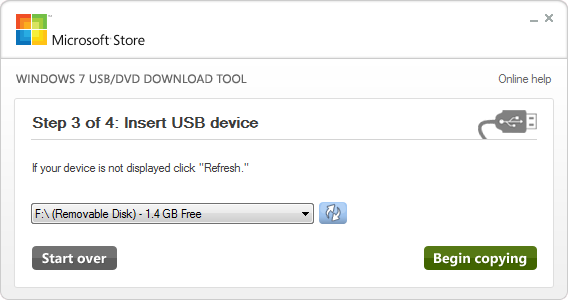
More often than not, laptops, PCs and servers are coming without a DVD or CD drive or you need to install an Windows from an ISO. You can use utilities such as Diskpart, however Microsoft have a really useful tool called the Windows 7 USB/DVD download tool which does everything for you. It even gives you the option to make a bootable USB or DVD.
So far I have used this tool for to create bootable USB keys for:
  • Windows 7
  • Windows 2008
  • Windows 8
  • Windows 2012
As most Microsoft Windows ISOs are over 3Gb in size, you will need a minimum of a 4Gb USB key.
Simply download the tool from the Microsoft Store and follow these simple steps:
    1. Plug your USB key into your computer and run the tool. Click the Browse button.
    2. Locate the ISO of the version of Windows you wish to install, and click OK. Then click Next.
    3. Now you can choose between a USB Device or a DVD. Click USB device.
    4. Select drive assigned to your USB Key and click Start Copying.
    5. If your USB Key is not empty, you may receive a warning. Click OK.
    6. If your USB Key is not empty, you may receive another warning about formatting. Click Yes to confirm.
    7. The utility will now format the USB key and copy the ISO. Once complete, it will show Status: Backup Complete.

Screenshots

As usual, here are a few screenshots of the process


Thursday, January 3, 2019

Resetting Administrator Password in Windows Server

Instructions

To reset the password on your Windows 2012 server, simply complete the following steps:
  • Boot from the Micrsoft Windows Server 2012 DVD
  • From the Windows Setup menu, click “Next”.
  • Select “Repair your computer”
  • Under Choose and option, click on “Troubleshoot”.
  • Under Advanced options, click “Command Prompt”.
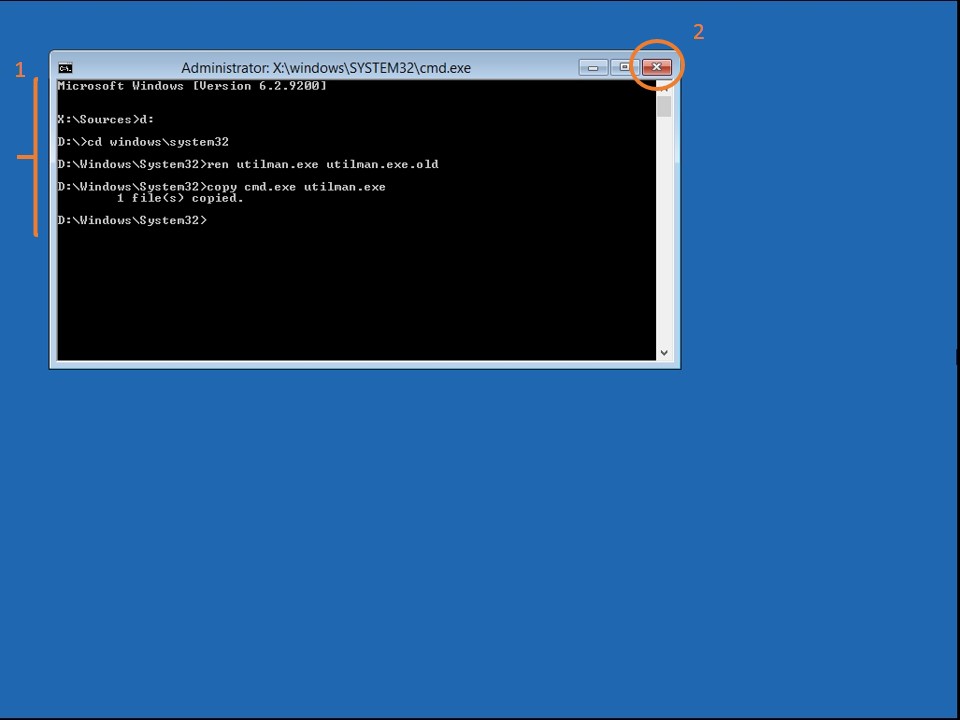
  • At the command prompt, run the following commands:
            d:
            cd windows\system32
            ren Utilman.exe Utilman.exe.old
            copy cmd.exe Utilman.exe
  • Close the command prompt and then click “Continue”.
  • The server should now boot and present the logon screen. Here click Windows Key + U.
  • At the prompt you can now change the password, by typing the following command:
    net user administrator Password123
    This will set the password for the Administrator user to be Password123 (case sensitive).
Closing the command prompt, you should now be able to log back onto the server using the password you have provided in the last step.

Cleanup Steps

Once you have verified you can log on to the server you will have repeat the steps above and boot using the Windows Server 2008 DVD/ISO and run the command prompt again.
  • Restart your server and once again, boot from the Micrsoft Windows Server 2012 DVD
  • From the Windows Setup menu, click “Next”.
  • Select “Repair your computer”
  • Under Choose and option, click on “Troubleshoot”.
  • Under Advanced options, click “Command Prompt”.
  • At the command prompt, run the following commands:
            d:
            cd windows\system32
            ren utilman.exe utilman.exe.new
            copy utilman.exe.old utilman.exe
  • Close the command prompt and then click “Continue”.
You should be back up and running as if nothing ever happened.

Screenshots

Here are some screenshots taken as I completed the password reset